

VPN on iPad: Easy Setup Guide for Beginners
Zafruddin Shaik
VPN
Published on
6 min read
An iPad is useful for browsing the web, attending online meetings, watching videos, reading, and managing everyday tasks. Whether you use your iPad at home, at work, or while travelling, protecting your online activity is an important part of maintaining digital privacy. A Virtual Private Network (VPN) can help by encrypting eligible internet traffic and routing it through a VPN server. Setting up a VPN on an iPad is usually straightforward, especially when you use a trusted VPN provider’s app. In this guide, you will learn how a VPN works on an iPad, how to install and connect to one, and what to check if your connection does not work as expected.
What Is a VPN on an iPad?
A VPN creates an encrypted connection between your device and a VPN server. When the connection is active, eligible internet traffic travels through this protected tunnel before reaching its destination. A VPN can help protect data from being easily observed on an untrusted network and may hide your public IP address from websites you visit. However, it does not make you completely anonymous or protect you from every online threat. Using a VPN on an iPad can be helpful when you browse on public Wi-Fi, access work resources remotely, or want an additional layer of privacy while using the internet.
Why Should You Use a VPN on Your iPad?
There are several reasons to consider using an iPad VPN.
Improve privacy on public Wi-Fi: Public networks in airports, hotels, cafés, and other shared spaces may not offer the same level of security as a trusted home network. A VPN can encrypt eligible traffic travelling through the connection.
Help protect sensitive data: If you use your iPad for online shopping, email, or work, a VPN can provide an additional layer of protection for network traffic.
Hide your public IP address: Websites and online services may see the VPN server’s IP address instead of your original public IP address for traffic routed through the VPN.
Access work or school networks: Some organisations use VPN connections to let authorised users access internal systems and resources remotely.
Remember that a VPN does not replace strong passwords, device updates, two-factor authentication, or safe browsing habits.
How to Set Up a VPN on an iPad
For most users, installing a VPN app is the simplest way to get started. Follow these steps to configure your connection.
Step 1: Choose a Trusted VPN Provider
Before installing a VPN, review the provider’s privacy policy, security features, supported protocols, server locations, and subscription terms. Check how the service handles connection data and whether its app supports your iPadOS version. Avoid choosing a service based only on claims such as “completely anonymous” or “100% secure.” No VPN can guarantee complete protection against every online risk.
Step 2: Download the VPN App
Open the App Store on your iPad and search for your chosen VPN provider’s official application. Check the developer details before downloading it. Install the app and open it once the installation is complete. Depending on the service, you may need to create an account, sign in, or select a subscription plan.
Step 3: Allow the VPN Configuration
When you first connect, iPadOS may ask permission to add a VPN configuration to your device. Review the prompt and approve it if you trust the provider and want to continue. This permission allows the app to establish a VPN connection through the operating system. You can review installed VPN configurations later in your iPad’s settings.
Step 4: Connect to a VPN Server
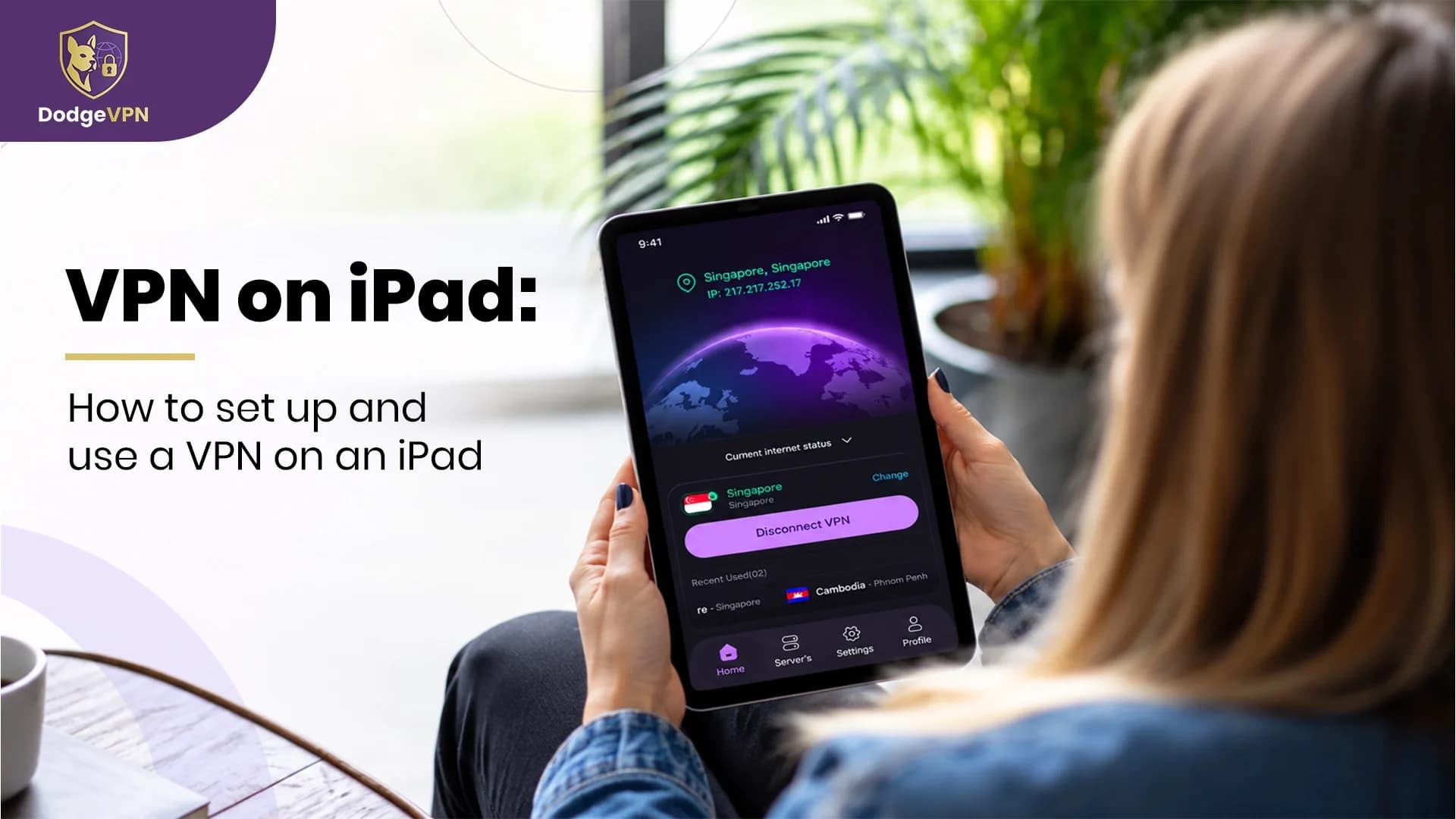
Open the VPN app and choose a server location. If your goal is general privacy and a responsive connection, a nearby server is often a sensible starting point. Tap the Connect button and wait for the app to confirm the connection. You may see a VPN indicator in your iPad’s status area or settings, depending on your iPadOS version.
Once connected, you can open Safari or another app and continue browsing.
How to Set Up a VPN Manually on an iPad
You can also configure a compatible VPN connection through the built-in settings. This method is more suitable for users who have received the required details from a VPN provider, employer, or school.
- Open Settings on your iPad.
- Go to General and select VPN & Device Management. The exact menu labels may vary by iPadOS version.
- Open the VPN section and select Add VPN Configuration, if available.
- Choose a supported connection type.
- Enter the server address, account details, authentication information, and other settings supplied by your provider or administrator.
- Save the configuration and connect.
Do not guess server addresses, passwords, certificates, or shared secrets. Manual configuration requires the correct details and a compatible VPN server. Some protocols, such as WireGuard and OpenVPN, typically require a dedicated app or provider-supported setup rather than the basic manual configuration screen.
How to Use a VPN Safely on Your iPad
After connecting, keep a few simple practices in mind.
- Use trusted networks: A VPN adds protection, but a secure and reliable internet connection is still important.
- Keep your iPad updated: Install available iPadOS and app updates to benefit from security improvements.
- Choose appropriate server locations: Nearby servers may offer better speeds, while other locations may be useful for specific legitimate needs.
- Review connection status: If the VPN disconnects, check the app before continuing activities that require the VPN.
- Understand the privacy policy: Your VPN provider may be able to access certain information about traffic passing through its service, so choose carefully.
A VPN also may not route every system service or app connection through its tunnel. Review your provider’s documentation if you need specific traffic to use the VPN.
Troubleshooting Common iPad VPN Problems
If your VPN will not connect, first check whether your Wi-Fi or mobile hotspot connection is working. Close and reopen the VPN app, try another server, and install any available app updates. If the connection remains unreliable, restart your iPad and review the VPN app’s settings. You can also check whether another VPN profile or a work or school device-management policy is affecting the connection. Avoid deleting a work-managed configuration without checking with your IT administrator. If the problem continues, contact your VPN provider with the error message and your iPadOS version.
Final Thoughts
Setting up a VPN on an iPad can be simple when you use a trusted provider’s official app. Install the app, approve the VPN configuration, choose a server, and connect before carrying out activities for which you want VPN protection. For more control, compatible services can also be configured manually using the correct server and authentication details. Whichever method you choose, combine VPN use with regular software updates, strong account security, and careful browsing habits to support a safer online experience.
FAQs
1. Can I use a VPN on my iPad?
Yes. iPadOS supports VPN connections through compatible provider apps and supported manual configurations. The exact setup depends on the VPN service and its connection protocol.
2. How do I turn on a VPN on my iPad?
Open your VPN app, sign in if required, select a server, and tap Connect. Approve the VPN configuration request if iPadOS displays one.
3. Is a VPN necessary when using public Wi-Fi on an iPad?
A VPN can add a layer of protection by encrypting eligible traffic on public Wi-Fi. You should still use HTTPS websites, keep your device updated, and avoid suspicious links.
4. Will a VPN slow down my iPad's internet connection?
It can. Encryption, server distance, server load, and your original internet speed may affect performance. Trying a nearby server may improve the experience.
5. Can I set up a VPN on my iPad without an app?
Yes, for compatible VPN protocols, you can use the built-in VPN configuration settings. You will need the correct server and authentication details from your VPN provider or network administrator.