

How to Use a VPN on Roku
Zafruddin Shaik
How-to
Published on
5 min read
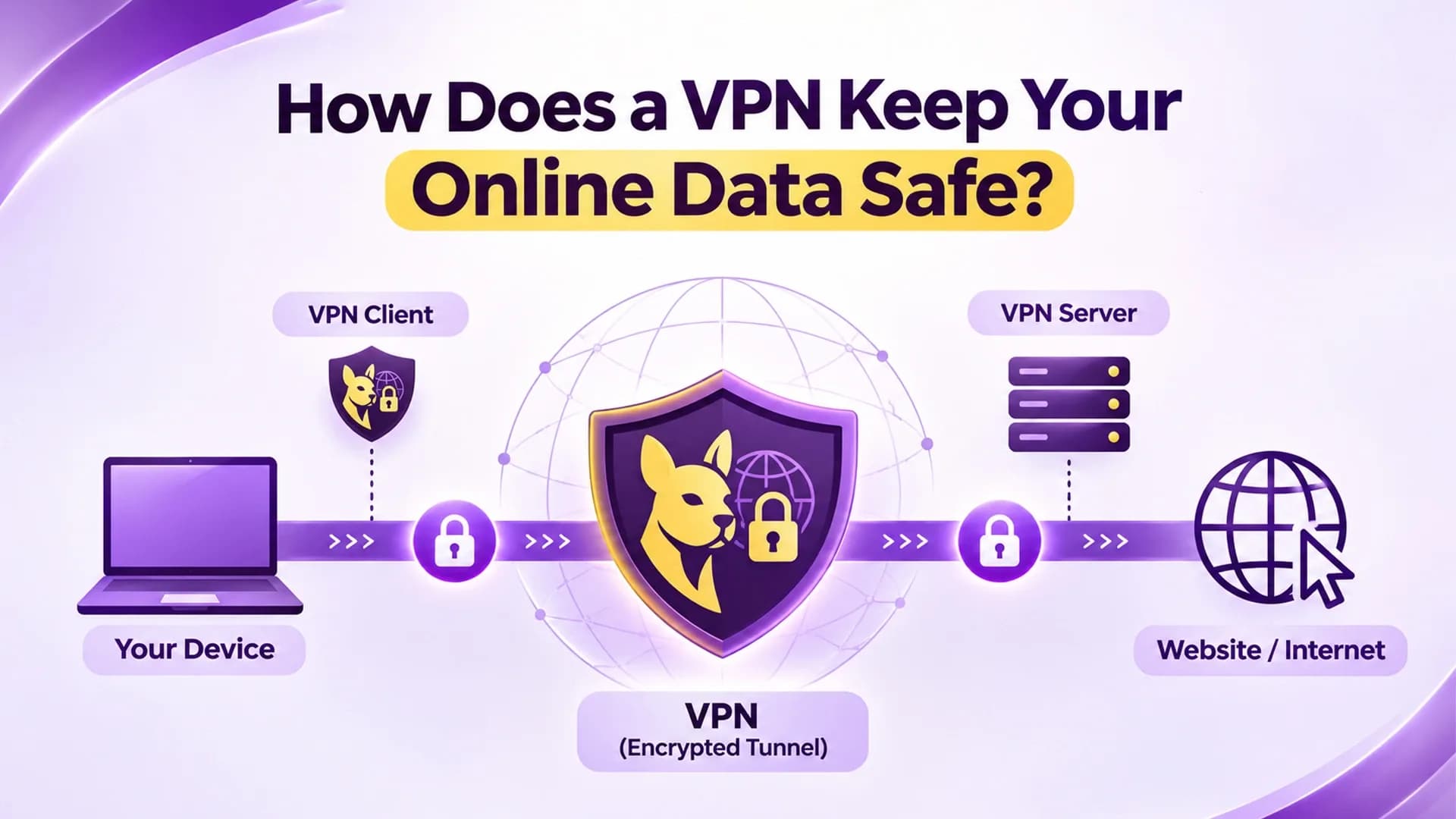
Roku is a popular streaming device that allows users to watch movies, TV shows and other entertainment through various streaming platforms. While it offers a simple way to access digital content, some users may want additional privacy when streaming or connect through a different virtual location. A Virtual Private Network (VPN) can help by encrypting internet traffic and routing it through a remote server. However, using a VPN on Roku is slightly different from using one on a smartphone, computer or smart TV. Roku does not support native VPN applications, which means users cannot simply download a VPN app and install it directly on their device. Instead, they need to connect Roku through a VPN-enabled router or share a VPN connection from a computer. Understanding these methods can help you choose a suitable setup for your home network.
Can You Install a VPN Directly on Roku?
Roku does not currently support native VPN applications through its Channel Store. This means there is no standard option to download, install and run a VPN application directly on a Roku streaming device. However, this does not mean you cannot use a VPN with Roku. You can configure a VPN on a compatible Wi-Fi router or create a shared network using a computer that is already connected to a VPN. With these methods, your Roku device connects to an internet network that routes its traffic through the VPN. This provides an alternative way to use VPN protection without installing additional software on Roku.
How to Set Up a VPN on Roku
There are two common ways to connect Roku through a VPN. Your choice depends on your router's compatibility, available devices and network requirements.
1. Configure a VPN on Your Wi-Fi Router
Setting up a VPN on your router is one of the most convenient methods, especially if you want multiple devices in your home to use the same VPN connection. Before starting, check whether your router supports VPN client functionality. You should also confirm that your VPN provider offers configuration files or instructions for your router model.
Follow these general steps:
- Open your router's administration panel using a web browser.
- Sign in with your router credentials.
- Find the VPN client section in the network settings.
- Enter the configuration details provided by your VPN service.
- Save the settings and establish the VPN connection.
- Check that the VPN connection is active.
- Connect your Roku device to the router's Wi-Fi network.
Once configured correctly, Roku traffic routed through that network will pass through the VPN. The exact configuration process depends on your router manufacturer and firmware.
2. Share a VPN Connection Through a Computer
If your router does not support VPN configuration, you may be able to share a VPN connection through a Windows computer. This method uses the computer as a virtual hotspot, allowing Roku to connect to a shared network.
Here is how to set it up:
- Install a compatible VPN application on your Windows computer.
- Connect the VPN to your preferred server.
- Open Windows Settings and select Network & Internet.
- Choose Mobile Hotspot.
- Enable the hotspot and configure its network name and password.
- Configure connection sharing so the hotspot routes traffic through the VPN.
- Open the network settings on Roku and connect to the shared Wi-Fi network.
It is important to verify that the VPN connection is actually being shared. Enabling a mobile hotspot alone does not automatically mean that all connected devices are protected by the VPN.
3. Use a VPN Connection Through a Mac
Mac users may also be able to share a VPN connection using the Internet Sharing feature, depending on their macOS version and network configuration. First, connect your Mac to a compatible VPN service. Then open System Settings, navigate to General and select Sharing. Look for Internet Sharing and check whether your VPN connection can be selected as the source. If your configuration supports it, choose the appropriate network interface, enable sharing and connect Roku to the shared network.
Some Mac configurations require additional network hardware or specific connection settings. Therefore, check compatibility before attempting this method.
Benefits of Using a VPN With Roku
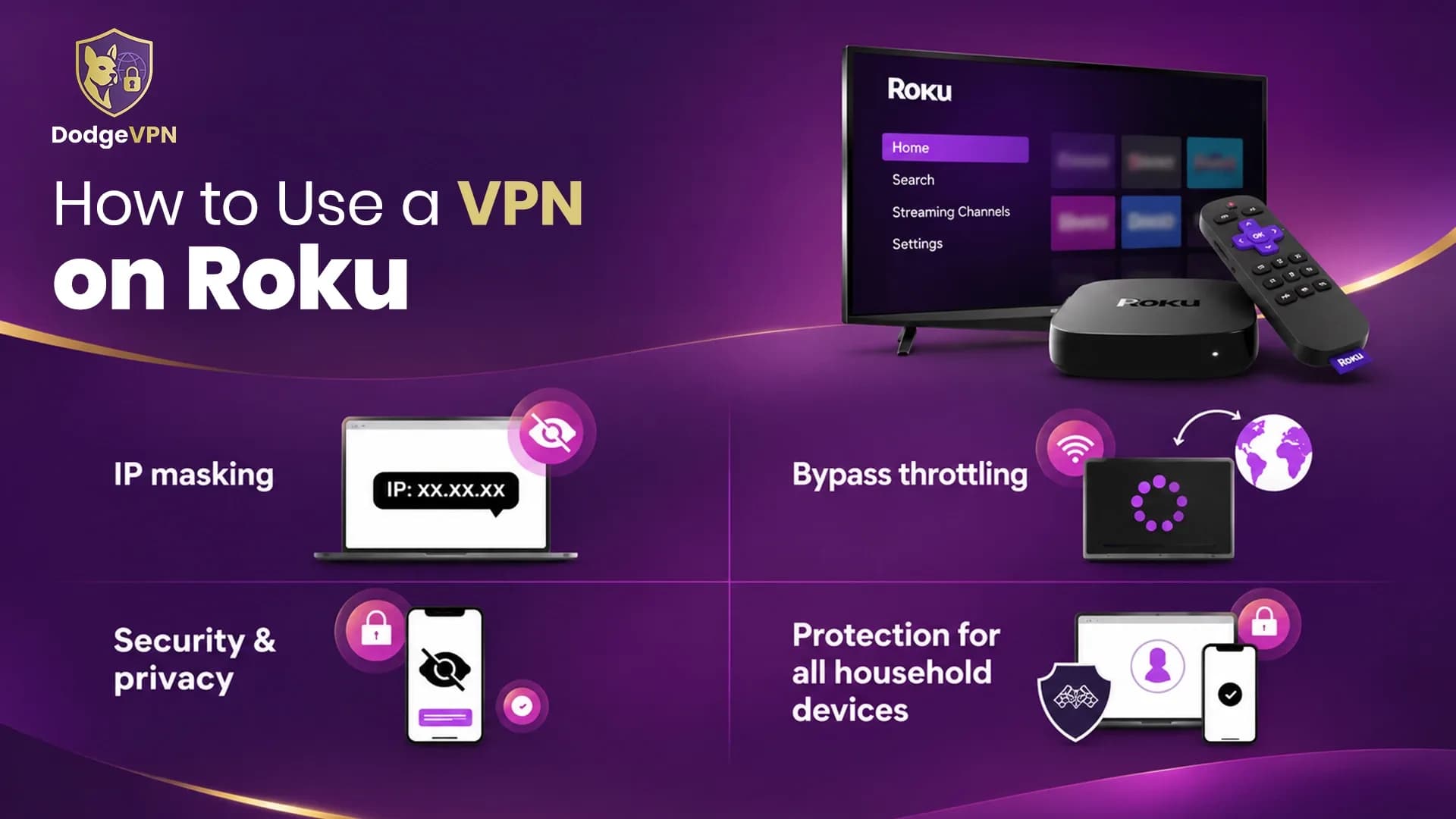
Using a VPN with Roku can offer additional privacy and network protection. One of its main benefits is encryption, which helps protect internet traffic from being easily observed by others on the same local network. A VPN can also change the apparent IP location of your connection by routing traffic through a server in another location. This may affect how certain online services identify your network, although it does not guarantee access to region-restricted streaming libraries. Another advantage is having greater control over your internet connection. Depending on the provider, you may be able to select different server locations and security protocols.
However, a VPN does not make streaming completely anonymous or guarantee uninterrupted access to every platform. Streaming services may use account details, payment information and other location checks to determine content availability.
Common Problems When Using a VPN on Roku
Sometimes Roku may experience connection problems when connected through a VPN-enabled network. These issues can result from incorrect router settings, unstable internet connections, incompatible configurations or VPN server problems. If your Roku device is not connecting properly, restart your router and streaming device first. Check whether the VPN connection is active and confirm that your router supports the selected VPN configuration. You can also try another VPN server if the current connection is unstable. If the problem continues, review your network settings and contact your VPN provider for technical assistance.
Final Thoughts
Although Roku does not offer native VPN application support, you can still use a VPN by configuring a compatible router or sharing a connection through a computer. Both methods provide an alternative way to route Roku internet traffic through a VPN. A router-based setup is generally more convenient for households with multiple connected devices, while a computer hotspot can be useful when router configuration is unavailable. Before choosing a method, check device compatibility, network requirements and your VPN provider's setup instructions.
FAQs
1. Can I install a VPN directly on Roku?
No. Roku does not currently support native VPN applications through its Channel Store. You need to connect through a VPN-enabled router or a compatible shared network.
2. What is the easiest way to use a VPN on Roku?
Configuring a VPN on a compatible router is generally one of the easiest long-term solutions. Once configured, supported devices connected to that network can use the VPN connection.
3. Can I use a free VPN on Roku?
A free VPN may work if it supports router configuration or connection sharing through a computer. However, free services can have limitations involving data usage, server availability, speed and privacy features.
4. Does using a VPN affect Roku streaming speed?
It can. A VPN adds another step to the internet connection, which may reduce streaming speeds. The impact depends on server distance, network quality, encryption and the VPN provider.
5. Can a VPN change the region shown by Roku?
A VPN can change the apparent IP location of your internet connection. However, Roku and streaming platforms may use additional location checks, so changing your IP address does not guarantee access to content from another region.