

How to Set Up a VPN on Amazon Fire TV Stick
Zafruddin Shaik
How-to
Published on
5 min read
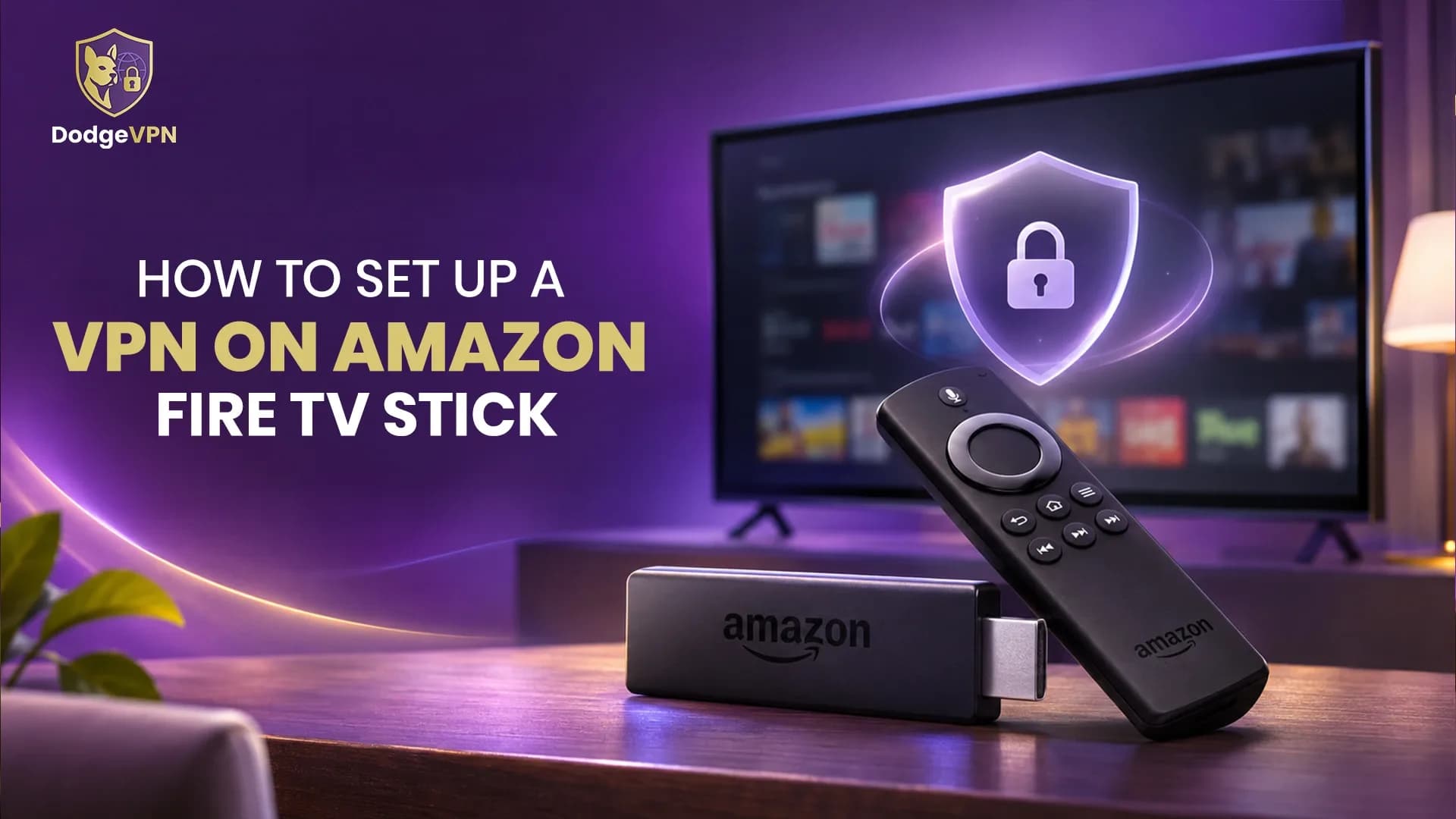
Amazon Fire TV Stick makes it easy to stream movies, TV shows and other entertainment directly on your television. It provides access to various streaming applications and online content through an internet connection. However, users may also want additional privacy while streaming or prefer to connect through a different virtual location. A Virtual Private Network (VPN) can help encrypt internet traffic and route it through a remote server. Setting up a VPN on Amazon Fire TV Stick is relatively straightforward when your device supports a compatible VPN application. You can install the application, sign in to your account and establish a secure connection without using a separate computer. Understanding the setup process can help you get started and manage your connection more easily.
Why Use a VPN on Amazon Fire TV Stick?
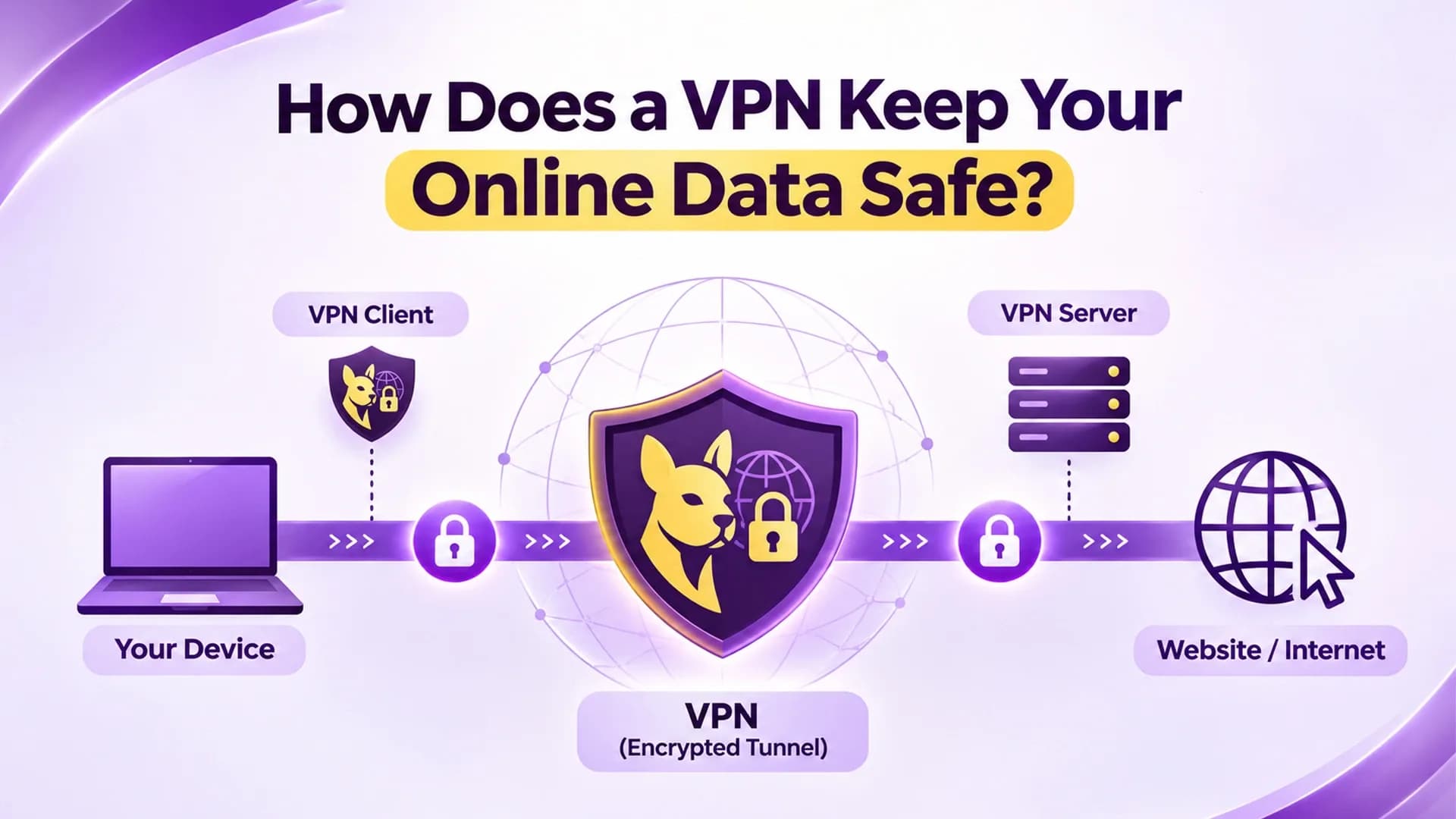
A VPN creates an encrypted connection between your device and a remote VPN server. This helps protect internet traffic from being easily monitored by others on the same local network. Using a VPN on Fire TV Stick can offer several privacy-related advantages. It can help protect your internet connection when streaming through shared networks and change the apparent IP location of your connection. Some users also explore VPN connections when travelling because their usual online services may behave differently depending on their network location. However, a VPN does not guarantee access to every streaming library, as streaming platforms may apply additional regional restrictions and account requirements.
How to Set Up a VPN on Amazon Fire TV Stick
The simplest method is to install a compatible VPN application directly from the Amazon Appstore. Before starting, make sure your Fire TV Stick has an active internet connection and that your VPN provider supports your device's operating system.
1. Open the Amazon Appstore
Turn on your television and connect your Amazon Fire TV Stick. From the home screen, navigate to the Find option and select Search. Use the on-screen keyboard to enter the name of your VPN provider. Check the search results and select the official application.
2. Download and Install the VPN Application
After selecting the correct application, choose the Download or Get option. Wait for the installation to finish. Once installed, open the application from your home screen or Applications section. Always download VPN applications from trusted sources to avoid unofficial or potentially unsafe software.
3. Sign In to Your VPN Account
Open the installed application and select the login option. Enter your registered account details to access the VPN service. Some applications may offer activation through a QR code or an online sign-in process. Follow the instructions displayed on your television to complete the setup.
4. Choose a VPN Server and Connect
After signing in, you can view the available server locations within the application. Select a suitable location and press the Connect button. The application may display a connection permission request. Review the request and approve it if you want to establish the VPN connection. Once connected, the application should indicate that the VPN is active. Your Fire TV Stick traffic routed through the VPN will now pass through the selected server.
5. Check Your VPN Connection
After connecting, verify that the VPN application displays an active connection. You can also use a trusted IP-checking service through a compatible browser to check the apparent IP location. Open your preferred streaming application and check whether it works normally. If you experience connection problems, try another server or review your VPN settings.
What If Your VPN App Is Not Available on Fire TV Stick?
Sometimes a VPN application may not appear in the Amazon Appstore. This can happen because of device compatibility, operating system differences or regional application availability. In such situations, you can consider alternative connection methods.
Use a VPN-enabled router: Configure a compatible VPN connection on your Wi-Fi router. Once connected, your Fire TV Stick can use the router's VPN-protected network without requiring a separate application.
Share a VPN connection from a computer: A Windows computer may be configured to share its VPN connection through a virtual hotspot. Connect your Fire TV Stick to that shared network after confirming that VPN traffic is being routed correctly.
These alternatives may require additional configuration, and their availability depends on your router, computer and VPN provider.
Common VPN Connection Problems and Solutions
Although VPN installation is usually simple, some users may experience connection difficulties. Understanding common problems can make troubleshooting easier.
- VPN application not appearing: Check your device's operating system and application compatibility. Some newer Fire TV devices use a different operating system and may not support every existing VPN application.
- Slow streaming performance: Try connecting to a closer VPN server and check your internet speed.
- Connection failure: Restart your Fire TV Stick, check your Wi-Fi connection and reconnect to the VPN.
- Streaming application errors: Some platforms restrict VPN connections. Try another available server or check the platform's regional access requirements.
If the problem continues, consult your VPN provider's support documentation for device-specific instructions.
Final Thoughts
Setting up a VPN on Amazon Fire TV Stick can help add an extra layer of privacy to your streaming connection. The easiest method is to install a compatible application through the Amazon Appstore, sign in and connect to a suitable VPN server. If the application is unavailable, a compatible VPN router or shared computer connection can provide an alternative. Before installing any application, check operating system compatibility and use trusted download sources. A properly configured VPN can help protect internet traffic, although it does not guarantee complete anonymity or unrestricted streaming access.
FAQs.
1. Can I install a VPN directly on Amazon Fire TV Stick?
Yes, many Fire TV Stick models support compatible VPN applications. You can search for your VPN provider in the Amazon Appstore, download its official application and sign in.
2. Is it difficult to set up a VPN on Fire TV Stick?
No. If your device supports the VPN application, the process generally involves downloading the app, signing in, selecting a server and connecting.
3. Can I use a free VPN on Amazon Fire TV Stick?
Some free VPN providers offer compatible Fire TV applications. However, free services may have limitations involving data usage, server availability, speed and privacy features. Check their terms and privacy policies before using them.
4. Does a VPN affect Fire TV Stick streaming speed?
A VPN can sometimes reduce internet speed because your traffic travels through an additional server. The impact depends on server distance, network quality, encryption and VPN performance.
5. What should I do if my VPN is not connecting to Fire TV Stick?
Check your internet connection, restart the device, update the VPN application and try another server. Also verify that your Fire TV Stick's operating system is compatible with the VPN application.