

How to Set Up a VPN on Smart TVs and Gaming Consoles
Zafruddin Shaik
VPN
Published on
6 min read
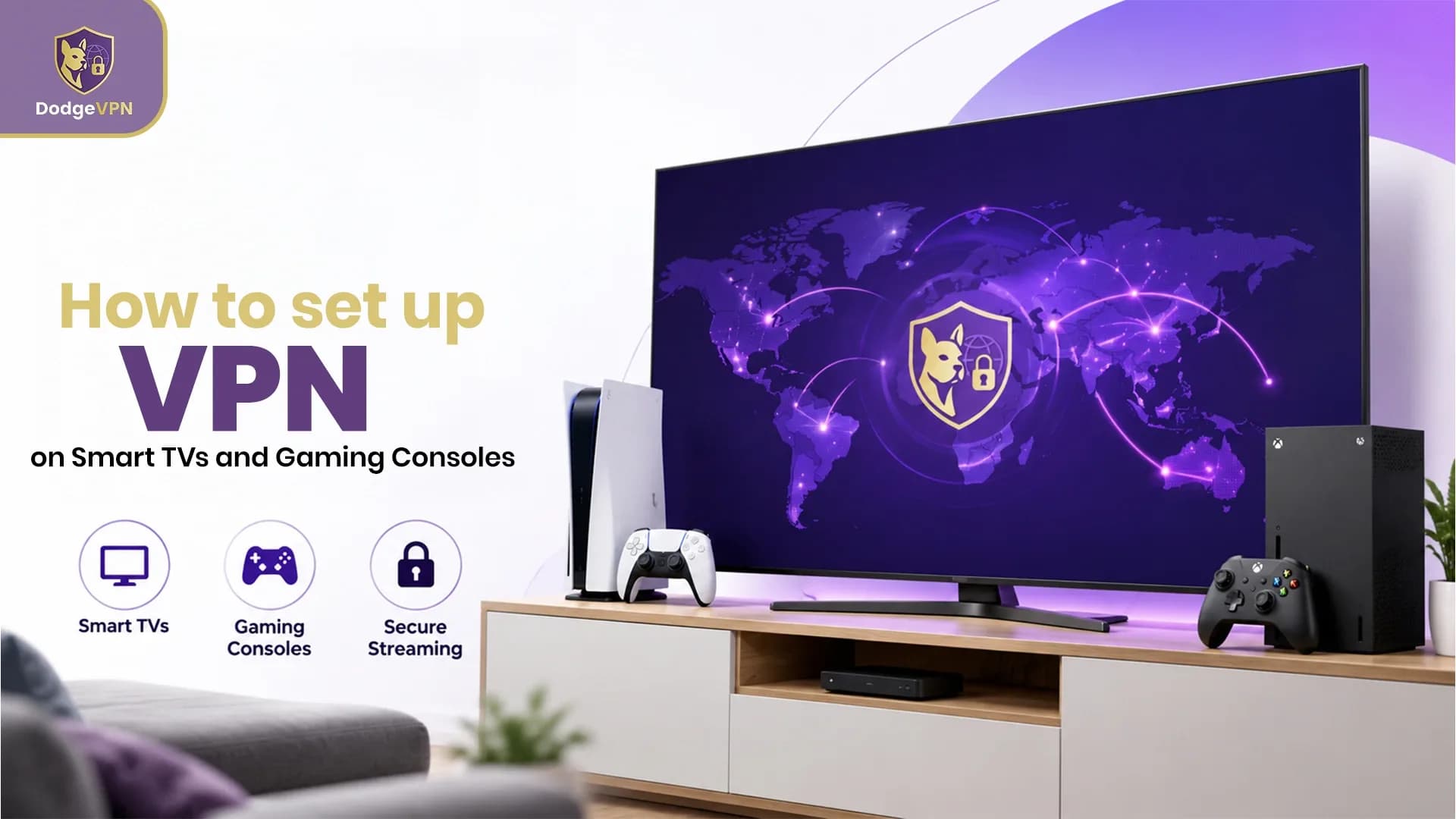
Smart TVs and gaming consoles have become an important part of everyday entertainment. Whether you use your television to stream films, watch online content, or play games on a console, these devices connect to the internet regularly. However, just like computers and smartphones, connected entertainment devices can raise privacy and security concerns. A Virtual Private Network (VPN) can help protect your internet connection by encrypting eligible network traffic and routing it through a VPN server. Although many Smart TVs and gaming consoles do not support direct VPN installation, there are several ways to connect them through a VPN-enabled router, computer, or compatible network setup.
Why Use a VPN on Smart TVs and Gaming Consoles?
A VPN can add an extra layer of privacy when your devices connect to the internet. Smart TVs and gaming consoles may collect certain usage information, communicate with online services, and connect to streaming or gaming platforms.
Here are some reasons to consider using a VPN:
- Improved online privacy: A VPN encrypts supported internet traffic, helping protect it from being easily viewed by others on the same network.
- More secure connections: Encryption can be useful when connecting through networks that you do not fully trust.
- Network flexibility: Connecting through a VPN server may change the apparent IP address seen by some online services.
- Privacy across devices: A VPN-enabled router can protect multiple compatible devices connected to the same network.
Remember that a VPN does not prevent every online threat, guarantee faster streaming, or replace account security measures.
How to Set Up a VPN on a Smart TV
The setup process depends on your television's operating system and whether it supports VPN applications. Here are three common methods.
1. Install a VPN App Directly
Some Smart TVs support VPN applications through their app stores. If your television is compatible, this is usually the simplest option.
Follow these steps:
- Open the app store on your Smart TV.
- Search for your chosen VPN application.
- Download and install the app if it is available.
- Sign in using your VPN account.
- Select a suitable server location.
- Connect to the VPN and check that your connection is working.
Not all Smart TVs support VPN apps. Check your television's operating system and the VPN provider's compatibility information before installing anything.
2. Connect Your Smart TV Through a VPN Router
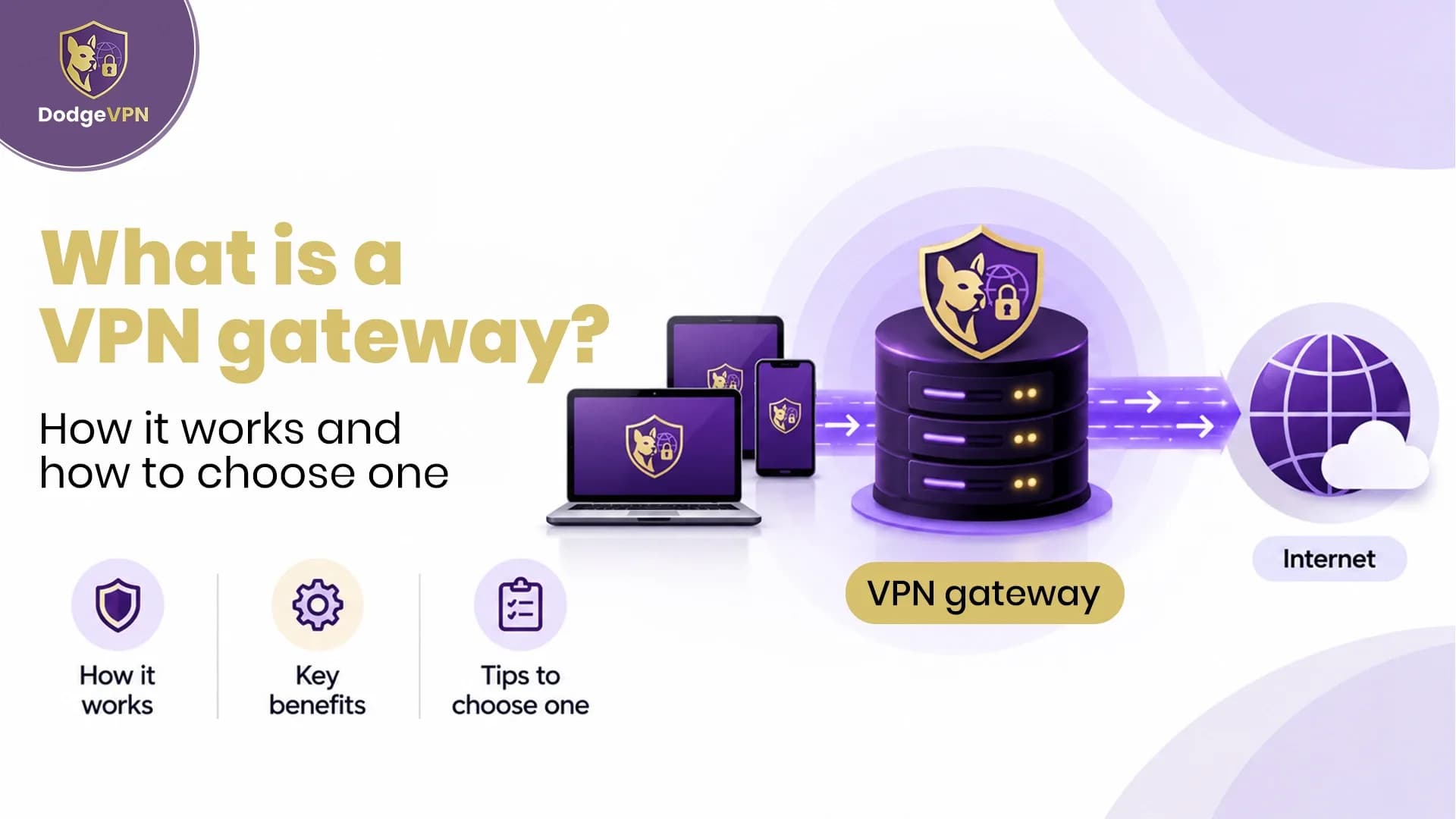
A VPN-enabled router is a useful option when your Smart TV does not support VPN applications. Instead of installing the VPN directly on the television, you configure the VPN connection on your router.
The general setup process is:
- Check whether your router supports VPN client connections.
- Sign in to your router's administration settings.
- Find the VPN client section.
- Enter the configuration details provided by your VPN service.
- Save the settings and connect the router to the VPN.
- Connect your Smart TV to the router's Wi-Fi network.
Once configured correctly, the television's supported internet traffic will pass through the router's VPN connection. Other devices connected to that router may also use the VPN, depending on its settings.
3. Share a VPN Connection From Your Computer
Another option is to share a VPN-connected computer's internet connection with your Smart TV. This can be useful if your router does not support VPN configuration. First, connect your computer to the VPN. Then enable its mobile hotspot or internet connection sharing feature, if supported. Connect your Smart TV to the shared network and check that the VPN connection remains active. The exact steps depend on your computer's operating system and network hardware.
How to Set Up a VPN on Gaming Consoles
Most PlayStation and Xbox consoles do not offer a standard option to install third-party VPN applications directly. However, you can connect them through a VPN-enabled router or a shared computer connection.
1. Set Up a VPN on PlayStation
If you want to use a VPN with a PlayStation console, you can configure the VPN on a compatible router.
- Set up the VPN connection on your router.
- Check that the VPN is connected and working.
- Open the network settings on your PlayStation.
- Select the router's Wi-Fi network or connect using an Ethernet cable.
- Test the internet connection from the console's network settings.
Your PlayStation will then use the router's internet connection. Make sure the VPN is active on the router before starting online activities.
2. Set Up a VPN on Xbox
Xbox users can also connect through a VPN-enabled router or a computer that shares its VPN connection.
For a router-based setup:
- Configure your VPN on a compatible router.
- Confirm that the router is connected to the VPN server.
- Open the network settings on your Xbox.
- Connect to the router through Wi-Fi or Ethernet.
- Run the network connection test.
If you use a computer instead, connect it to the VPN first and enable internet sharing. Then connect your Xbox to the shared network.
Tips for Choosing the Right VPN Setup
Before connecting your entertainment devices, consider a few important factors:
- Device compatibility: Check whether your Smart TV, router, or computer supports the required VPN setup.
- Connection speed: Choose a VPN service with reliable servers and suitable performance for streaming and gaming.
- Encryption and protocols: Look for modern security protocols and strong encryption.
- Router support: If you want to protect several devices, check whether your router supports VPN client configuration.
- Ease of use: A straightforward setup can make it easier to manage connections and troubleshoot problems.
For online gaming, remember that connecting to a distant VPN server may increase latency or cause lag. Choose a nearby server where possible and test your connection before playing.
Common VPN Setup Problems and How to Fix Them
Sometimes, a VPN connection may not work as expected. Here are a few common issues and possible solutions:
- Slow internet connection: Try a closer VPN server or check your regular internet speed.
- Device cannot connect: Restart your router and entertainment device, then check the network settings.
- VPN disconnects frequently: Update your router firmware or VPN application and review the connection settings.
- Streaming or gaming service does not work: Some platforms restrict VPN connections. Check the service's terms and your VPN provider's support information.
Final Thoughts
Setting up a VPN on Smart TVs and gaming consoles does not always require installing an application directly on the device. A compatible router or shared computer connection can provide an alternative when direct installation is unavailable. Before choosing a method, check your device compatibility, router features, and internet requirements. With the right configuration, you can add an extra layer of privacy to your home entertainment network while enjoying streaming and gaming.
FAQs.
1. Can I install a VPN directly on my Smart TV?
Some Smart TVs support VPN applications, but availability depends on the television's operating system and the VPN provider. If direct installation is not supported, you can use a compatible VPN router.
2. Can I use a VPN on PlayStation?
Yes. You can connect a PlayStation to a VPN through a compatible router or a computer sharing its VPN connection. Direct VPN app installation is not generally supported.
3. Does Xbox support VPN connections?
Xbox consoles can use a VPN connection through a compatible router or a computer's shared network. The setup depends on your available hardware and software.
4. Will a VPN make gaming faster?
Not necessarily. A VPN can sometimes improve routing in specific situations, but it may also increase latency. For the best results, test a nearby server and compare your connection performance.
5. Can one VPN router protect multiple devices?
Yes. A VPN-enabled router can route supported traffic from multiple connected devices through the VPN. The number of devices and overall performance depend on the router's capabilities and your internet connection.